Google Play Seller Support in India

Posted by Ibrahim Elbouchikhi, Product Manager on the Google Play team


Over the past year, Android device activations in India have jumped more than 400%, bringing millions of new users to Google Play and driving huge increases in app downloads. In the last six months, Android users in India downloaded more apps than in the previous three years combined, and India has rocketed to become the fourth-largest market worldwide for app downloads. To help developers capitalize on this tremendous growth, we are launching Google Play seller support in India.


Starting today, developers in India can sell paid applications, in-app products, and subscriptions in Google Play, with monthly payouts to their local bank accounts. They can take advantage of all of the tools offered by Google Play to monetize their products in the best way for their businesses, and they can target their products to the paid ecosystem of hundreds of millions of users in India and across the world.


If you are an Android developer based in India, you can get started right away by signing in to your Developer Console and setting up a Google Checkout merchant account. If your apps are already published as free, you can monetize them by adding in-app products or subscriptions. For new apps, you can publish the apps as paid, in addition to selling in-app products or subscriptions.


When you’ve prepared your apps and in-app products, you can price them in any available currencies, publish, and then receive payouts and financial data in your local currency. Visit the developer help center for complete details.


Along with seller support, we're also adding buyer’s currency support for India. We encourage developers everywhere to visit your Developer Console as soon as possible to set prices for your products in Indian Rupees and other new currencies (such as Russian Rubles).


Stay tuned for more announcements as we continue to roll out Google Play seller support to many more countries around the world.


New Google Play Developer Console Available to Everyone

Posted by Eva-Lotta Lamm, Riccardo Govoni, and Ellie Powers of the Google Play team


We've been working on a new Google Play Developer Console, centered around how you make and publish apps, to create a foundation for the exciting features we have planned for the future. Earlier this year at Google I/O, we demoed the new version (video). Since then, we've been testing it out with tens of thousands of developers, reviewing their feedback and making adjustments.


Today, we’re very happy to announce that all developers can now try the new Google Play Developer Console. At its core, the Developer Console is how you put your app in front of hundreds of millions of Android users around the world, and track how your app is doing. We hope that with a streamlined publishing flow, new language options, and new user ratings statistics, you’ll have better tools for delivering great Android apps that delight users.


Sleeker, faster, easier to navigate


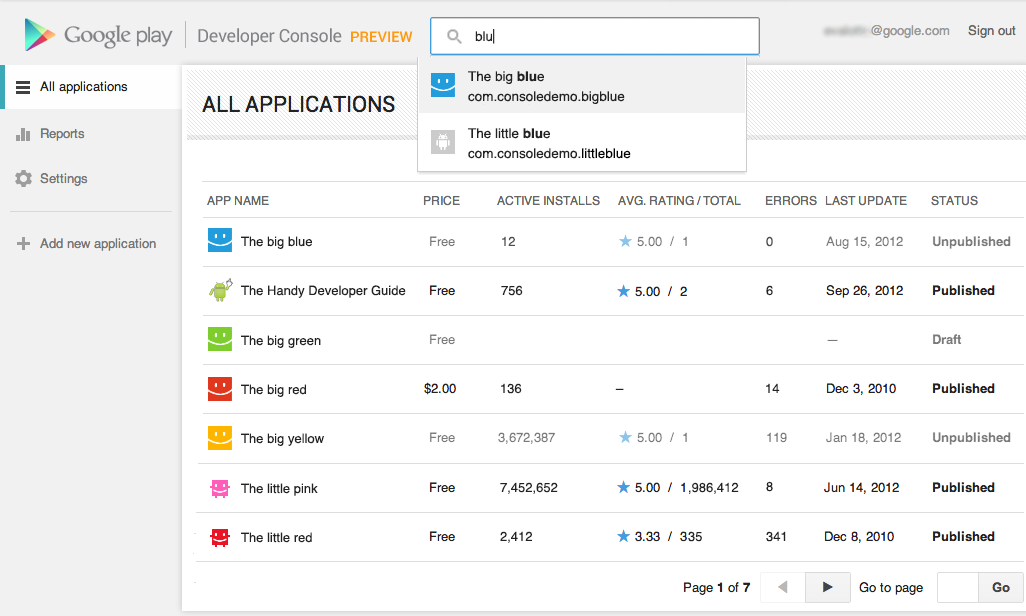
You spend a lot of time in the Developer Console, so we overhauled the interface for you. It's bright and appealing to look at, easy to find your way around using navigation and search, and it loads quickly even if you have a lot of apps.


Designed for speed. Quickly locate the app data and business information you use every day. More screenshots »


Track user ratings over time, and find ways to improve


One of the most important things you'll be able to do is track the success of your app over time — it's how you continue to iterate and make beautiful, successful apps. You'll see new statistics about your user ratings: a graph showing changes over time, for both the all-time average user rating and new user ratings that come in on a certain day. As with other statistics, you'll be able to break down the data by device, country, language, carrier, Android version, and app version. For example, after optimizing your app for tablets, you could track your ratings on popular tablets.


New charts for user ratings. You can now track user ratings over time and across countries. More screenshots »


Better publishing workflow


We've completely revamped and streamlined the app publishing process to give you more time to build great apps. You can start with either an APK or an app name, and you can save before you have all of the information. You can also now see differences between the new and old versions of an app, making it easy to catch unintentional changes before you publish a new version to your users.


More languages for listings, with automated translations


You'll also enjoy a new app publishing flow and the ability to publish your app listing in 49 languages. Once you've saved any change to your application in the new Developer Console, your users will have the option of viewing an automatic translation of your listing on the web today and soon on devices — no additional action on your part is needed.


How can you try the new version?


Go to your Developer Console and click on “Try the new version” in the header or go directly to the new version. If you prefer the new version, don't forget to bookmark the new URL.


Please note that we're not quite done yet, so the following advanced features are not yet supported in the new Google Play Developer Console: multiple APK support, APK Expansion Files and announcements. To use these features, you can click “Switch back” in the header at any time to return to the old version.


Click the “Feedback” link in the header to let us know what you think, so that we can continue to improve your experience as a Google Play developer. Thank you for all of the feedback so far.


Building Quality Tablet Apps

Posted by Reto Meier, Android Developer Relations Tech Lead


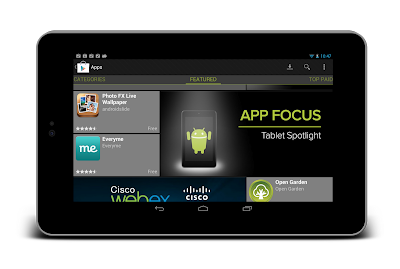
With the release of Nexus 7 earlier this year, we shared some tips on how you can get your apps ready for a new wave of Android tablets. With the holiday season now approaching, we’re creating even more ways for great tablet apps to be featured in Google Play - including a series of new app collections that highlight great apps specifically for tablet users.


To help you take advantage of the opportunity provided by the growing tablet market, we’ve put together this Tablet App Quality Checklist to make it easier for you to ensure your app meets the expectations of tablet users.


The checklist includes a number of key focus areas for building apps that are a great experience on tablets, including:

  • Optimizing your layouts for larger screens

  • Taking advantage of extra screen area available on tablets

  • Using Icons and other assets that are designed for tablet screens


Each focus area comprises several smaller tasks or best practices. As you move through the checklist, you'll find links to support resources that can help you address the topics raised in each task.


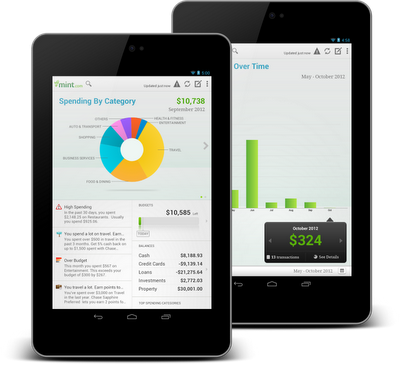
The benefits of building an app that works great on tablets is evident in the experiences of Mint.com, Tiny Co, and Instapaper who reported increased user engagement, better monetization, and more downloads from tablet users. You can find out more about their experience in these developer case studies.


The Tablet Quality Checklist is a great place to get started, but it’s just the beginning. We’ll be sharing more tablet development tips every day this week on +Android Developers. In Android Developers Live, Tuesday’s Android Design in Action broadcast will focus on optimizing user experience for tablets, on Thursday we’ll be interviewing our tablet case studies during Developers Strike Back, and on Friday’s live YouTube broadcasts of The App Clinic and Friday Games Review will be reviewing apps and games on Android tablets.


What are your best tips for building great

tablet apps?


Join the discussion on

+Android Developers


Google Play services and OAuth Identity Tools

Posted by Tim Bray

The rollout of Google Play services to all Android 2.2+ devices worldwide is now complete, and all of those devices now have new tools for working with OAuth 2.0 tokens. This is an example of the kind of agility in rolling out new platform capabilities that Google Play services provides.

Why OAuth 2.0 Matters

The Internet already has too many usernames and passwords, and they don’t scale. Furthermore, your Android device has a strong notion of who you are. In this situation, the industry consensus is that OAuth 2.0 is a good choice for the job, offering the promise of strong security minus passwords.

Google Play services make OAuth 2.0 authorization available to Android apps that want to access Google APIs, with a good user experience and security.

Typically, when you want your Android app to use a Google account to access something, you have to pick which account on the device to use, then you have to generate an OAuth 2.0 token, then you have to use it in your HTTP-based dialogue with the resource provider.

These tasks are largely automated for you if you’re using a recent release of the Google APIs Client Library for Java; the discussion here applies if you want to access the machinery directly, for example in sending your own HTTP GETs and POSTs to a RESTful interface.

Preparation

Google Play services has just started rolling out, and even after the rollout is complete, will only be available on compatible Android devices running 2.2 or later. This is the vast majority, but there will be devices out there where it’s not available. It is also possible for a user to choose to disable the software.

For these reasons, before you can start making calls, you have to verify that Google Play services is installed. To do this, call isGooglePlayServicesAvailable(). The result codes, and how to deal with them, are documented in the ConnectionResult class.

Choosing an Account

This is not, and has never been, rocket science; there are many examples online that retrieve accounts from Android’s AccountManager and display some sort of pick list. The problem is that they all have their own look and feel, and for something like this, which touches on security, that’s a problem; the user has the right to expect consistency from the system.

Now you can use the handy AccountPicker.newChooseAccountIntent() method to give you an Intent; feed it to startActivityForResult() and you’ll launch a nice standardized user experience that will return you an account (if the user feels like providing one).

Two things to note: When you’re talking to these APIs, they require a Google account (AccountManager can handle multiple flavors), so specify GoogleAuthUtil.GOOGLE_ACCOUNT_TYPE argument as the value for the allowableAccountTypes argument. Second, you don’t need an android.accounts.Account object, you just use the email-address string (available in account.name) that uniquely identifies it.

Getting a Token

There’s really only one method call you need to use, GoogleAuthUtil.getToken(). It takes three arguments: a Context, an email address, and another string argument called scope. Every information resource that is willing to talk OAuth 2.0 needs to publish which scope (or scopes) it uses. For example, to access the Google+ API, the scope is oauth2:https://www.googleapis.com/auth/plus.me. You can provide multiple space-separated scopes in one call and get a token that provides access to all of them. Code like this might be typical:

  private final static String G_PLUS_SCOPE = 
"oauth2:https://www.googleapis.com/auth/plus.me";
private final static String USERINFO_SCOPE =
"https://www.googleapis.com/auth/userinfo.profile";
private final static String SCOPES = G_PLUS_SCOPE + " " + USERINFO_SCOPE;

In an ideal world, getToken() would be synchronous, but three things keep it from being that simple:

  1. The first time an app asks for a token to access some resource, the system will need to interact with the user to make sure they’re OK with that.


  2. Any time you ask for a token, the system may well have a network conversation with the identity back-end services.


  3. The infrastructure that handles these requests may be heavily loaded and not able to get you your token right away. Rather than keeping you waiting, or just failing, it may ask you to go away and come back a little later.


The first consequence is obvious; you absolutely can’t call getToken() on the UI thread, since it’s subject to unpredictable delays.

When you call it, the following things can happen:

  • It returns a token. That means that everything went fine, the back-end thinks the authorization was successful, and you should be able to proceed and use the token.


  • It throws a UserRecoverableAuthException, which means that you need to interact with the user, most likely to ask for their approval on using their account for this purpose. The exception has a getIntent() method, whose return value you can feed to startActivityForResult() to take care of that. Of course, you’ll need to be watching for the OK in the onActivityResult() method.


  • It throws an IOException, which means that the authorization infrastructure is stressed, or there was a (not terribly uncommon on mobile devices) networking error. You shouldn’t give up instantly, because a repeat call might work. On the other hand, if you go back instantly and pester the server again, results are unlikely to be good. So you need to wait a bit; best practice would be the classic exponential-backoff pattern.


  • It throws a GoogleAuthException, which means that authorization just isn’t going to happen, and you need to let your user down politely. This can happen if an invalid scope was requested, or the account for the email address doesn’t actually exist on the device.


Here’s some sample code:

       try {
// if this returns, the OAuth framework thinks the token should be usable
String token = GoogleAuthUtil.getToken(this, mRequest.email(),
mRequest.scope());
response = doGet(token, this);

} catch (UserRecoverableAuthException userAuthEx) {
// This means that the app hasn't been authorized by the user for access
// to the scope, so we're going to have to fire off the (provided) Intent
// to arrange for that. But we only want to do this once. Multiple
// attempts probably mean the user said no.
if (!mSecondTry) {
startActivityForResult(userAuthEx.getIntent(), REQUEST_CODE);
response = null;
} else {
response = new Response(-1, null, "Multiple approval attempts");
}

} catch (IOException ioEx) {
// Something is stressed out; the auth servers are by definition
// high-traffic and you can't count on 100% success. But it would be
// bad to retry instantly, so back off
if (backoff.shouldRetry()) {
backoff.backoff();
response = authenticateAndGo(backoff);
} else {
response =
new Response(-1, null, "No response from authorization server.");
}

} catch (GoogleAuthException fatalAuthEx) {
Log.d(TAG, "Fatal Authorization Exception");
response = new Response(-1, null, "Fatal authorization exception: " +
fatalAuthEx.getLocalizedMessage());
}

This is from a sample library I’ve posted on code.google.com with an AuthorizedActivity class that implements this. We think that some of this authorization behavior is going to be app-specific, so it’s not clear that this exact AuthorizedActivity recipe is going to work for everyone; but it’s Apache2-licensed, so feel free to use any pieces that work for you. It’s set up as a library project, and there’s also a small sample app called G+ Snowflake that uses it to return some statistics about your Google+ posts; the app is in the Google Play Store and its source is online too.

Registering Your App

Most services that do OAuth 2.0 authorization want you to register your app, and Google’s are no exception. You need to visit the Google APIs Console, create a project, pick the APIs you want to access off the Services menu, and then hit the API Access tab to do the registration. It’ll want you to enter your package name; the value of the package attribute of the manifest element in your AndroidManifest.xml.

Also, it’ll want the SHA1 signature of the certificate you used to sign your app. Anyone who’s published apps to Google Play Apps knows about keystores and signing. But before you get there, you’ll be working with your debug-version apps, which are signed with a certificate living in ~/.android/debug.keystore (password: “android”). Fortunately, your computer probably already has a program called “keytool” installed; you can use this to get the signature. For your debug version, a correct incantation is:

keytool -exportcert -alias androiddebugkey -keystore ~/.android/debug.keystore -v -list

This will print out the SHA1 signature in a nicely labeled easy-to-cut-and-paste form.

This may feel a little klunky, but it’s worth it, because some magic is happening. When your app is registered and you generate a token and send it to a service provider, the provider can check with Google, which will confirm that yes, it issued that token, and give the package name of the app it was issued to. Those of you who who’ve done this sort of thing previously will be wondering about Client IDs and API Keys, but with this mechanism you don’t need them.

Using Your Token

Suppose you’ve registered your app and called GoogleAuthUtil.getToken() and received a token. For the purposes of this discussion, let’s suppose that it’s “MissassaugaParnassus42”. Then all you need to do is, when you send off an HTTP request to your service provider, include an HTTP header like so:

Authorization: Bearer MissassaugaParnassus42

Then your HTTP GETs and POSTs should Just Work. You should call GoogleAuthUtil.getToken() to get a token before each set of GETs or POSTs; it’s smart about caching things appropriately, and also about dealing with token expiry and refresh.

Once again, as I said at the top, if you’re happy using the Google APIs Client Library for Java, it’ll take care of all the client-side stuff; you’ll still need to do the developer console app registration.

Otherwise, there’s a little bit of coding investment here, but the payoff is pretty big: Secure, authenticated, authorized, service access with a good user experience.


Join the discussion on

+Android Developers


Creating Your Own Spelling Checker Service

Posted by Satoshi Kataoka and Ken Wakasa of the Android text input engineering team


The Spelling Checker framework improves the text-input experience on Android by helping the user quickly identify and correct spelling errors. When an app uses the spelling checker framework, the user can see a red underline beneath misspelled or unrecognized words so that the user can correct mistakes instantly by choosing a suggestion from a dropdown list.


If you are an input method editor (IME) developer, the Spelling Checker framework gives you a great way to provide an even better experience for your users. You can add your own spelling checker service to your IME to provide consistent spelling error corrections from your own custom dictionary. Your spelling checker can recognize and suggest corrections for the vocabularies that are most important to your users, and if your language is not supported by the built-in spelling checker, you can provide a spelling checker for that language.


The Spelling Checker APIs let you create your own spelling checker service with minimal steps. The framework manages the interaction between your spelling checker service and a text input field. In this post we’ll give you an overview of how to implement a spelling checker service. For details, take a look at the Spelling Checker Framework API Guide.


1. Create a spelling checker service class


To create a spelling checker service, the first step is to create a spelling checker service class that extends android.service.textservice.SpellCheckerService.


For a working example of a spelling checker, you may want to take a look at the SampleSpellCheckerService class in the SpellChecker sample app, available from the Samples download package in the Android SDK.


2. Implement the required methods


Next, in your subclass of SpellCheckerService, implement the methods createSession() and onGetSuggestions(), as shown in the following code snippet:

@Override                                                                        
public Session createSession() {
return new AndroidSpellCheckerSession();
}

private static class AndroidSpellCheckerSession extends Session {
@Override
public SuggestionsInfo onGetSuggestions(TextInfo textInfo, int suggestionsLimit) {
SuggestionsInfo suggestionsInfo;
... // look up suggestions for TextInfo
return suggestionsInfo;
}
}


Note that the input argument textInfo of onGetSuggestions(TextInfo, int) contains a single word. The method returns suggestions for that word as a SuggestionsInfo object. The implementation of this method can access your custom dictionary and any utility classes for extracting and ranking suggestions.


For sentence-level checking, you can also implement onGetSuggestionsMultiple(), which accepts an array of TextInfo.


3. Register the spelling checker service in AndroidManifest.xml


In addition to implementing your subclass, you need to declare the spelling checker service in your manifest file. The declaration specifies the application, the service, and a metadata file that defines the Activity to use for controlling settings. Here’s an example:

<manifest xmlns:android="http://schemas.android.com/apk/res/android"
package="com.example.android.samplespellcheckerservice">
<application android:label="@string/app_name">
<service
android:label="@string/app_name"
android:name=".SampleSpellCheckerService"
android:permission="android.permission.BIND_TEXT_SERVICE">
<intent-filter>
<action
android:name="android.service.textservice.SpellCheckerService" />
</intent-filter>
<meta-data
android:name="android.view.textservice.scs"
android:resource="@xml/spellchecker" />
</service>
</application>
</manifest>


Notice that the service must request the permission android.permission.BIND_TEXT_SERVICE to ensure that only the system binds to the service.


4. Create a metadata XML resource file


Last, create a metadata file for your spelling checker to define the Activity to use for controlling spelling checker settings. The metadata file can also define subtypes for the spelling checker. Place the file in the location specified in the

element of the spelling checker declaration in the manifest file.


In the example below, the metadata file spellchecker.xml specifies the settings Activity as SpellCheckerSettingsActivity and includes subtypes to define the locales that the spelling checker can handle.

<spell-checker xmlns:android="http://schemas.android.com/apk/res/android"
android:label="@string/spellchecker_name"
android:settingsactivity="com.example.SpellCheckerSettingsActivity" />
<subtype
android:label="@string/subtype_generic"
android:subtypeLocale="en" />
</spell-checker>


That’s it! Your spelling checker service is now available to client applications such as your IME.


Bonus points: Add batch processing of multiple sentences


For faster, more accurate spell-checking, Android 4.1 (Jelly Bean) introduces APIs that let clients pass multiple sentences to your spelling checker at once.


To support sentence-level checking for multiple sentences in a single call, just override and implement the method onGetSentenceSuggestionsMultiple(), as shown below.

private static class AndroidSpellCheckerSession extends Session {                 
@Override
public SentenceSuggestionsInfo[] onGetSentenceSuggestionsMultiple(
TextInfo[] textInfo, int suggestionsLimit) {
SentenceSuggestionsInfo[] sentenceSuggestionsInfos;
... // look up suggestions for each TextInfo
return sentenceSuggestionsInfos
}
}


In this case, textInfo is an array of TextInfo, each of which holds a sentence. The method returns lengths and offsets of suggestions for each sentence as a SentenceSuggestionsInfo object.


Documents and samples


If you’d like to learn more about how to use the spelling checker APIs, take a look at these documents and samples:

  • Spelling Checker Framework API Guide — a developer guide covering the Spelling Checker API for clients and services.

  • SampleSpellCheckerService sample app — helps you get started with your spelling checker service.

    • You can find the app at /samples/android-15/SpellChecker/SampleSpellCheckerService in the Samples download.


  • HelloSpellChecker sample app — a basic app that uses a spelling checker.

    • You can find the app at /samples/android-15/SpellChecker/HelloSpellChecker in the Samples download.


To learn how to download sample apps for the Android SDK, see Samples.


Join the discussion on

+Android Developers


Getting Your App Ready for Jelly Bean and Nexus 7

[This post is by Nick Butcher, an Android engineer who notices small imperfections, and they annoy him.]


We are pleased to announce that the full SDK for Android 4.1 is now available to developers and can be downloaded through your SDK Manager. You can now develop and publish applications against API level 16 using new Jelly Bean APIs. We are also releasing SDK Tools revision 20.0.1 and NDK revision 8b containing bug fixes only.


For many people, their first taste of Jelly Bean will be on the beautiful Nexus 7. While most applications will run just fine on Nexus 7, who wants their app to be just fine? Here are some tips for optimizing your application to make the most of this device.


Screen


Giving Nexus 7 its name, is the glorious 7” screen. As developers we see this as around 600 * 960 density independent pixels and a density of tvdpi. As Dianne Hackborn has elaborated, this density might be a surprise to you but don’t panic! We actively discourage you from rushing out and creating new assets at this density; Android will scale your existing assets for you. In fact the entire Jelly Bean OS contains only a single tvdpi asset, the remainder are scaled down from hdpi assets.


To be sure the system can successfully scale your hdpi assets for tvdpi, take special care that your 9-patch images are created correctly so that they can be scaled down effectively:

  • Make sure that any stretchable regions are at least 2x2 pixels in size, else they risk disappearing when scaled down.

  • Give one pixel of extra safe space in the graphics before and after stretchable regions else interpolation during scaling may cause the color at the boundaries to change.

The 7” form factor gives you more space to present your content. You can use the sw600dp resource qualifier to provide alternative layouts for this size screen. For example your application may contain a layout for your launch activity:

res/layout/activity_home.xml
To take advantage of the extra space on the 7” screen you might provide an alternative layout:

res/layout-sw600dp/activity_home.xml
The sw600dp qualifier declares that these resources are for devices that have a screen with at least 600dp available on its smallest side.


Furthermore you might even provide a different layout for 10” tablets:

res/layout-sw720dp/activity_home.xml
This technique allows a single application to use defined switching points to respond to a device’s configuration and present an optimized layout of your content.


Similarly if you find that your phone layout works well on a 7” screen but requires slightly larger font or image sizes then you can use a single layout but specify alternative sizes in dimensions files. For example res/values/dimens.xml may contain a font size dimension:

<dimen name="text_size">18sp</dimen>
but you can specify an alternative text size for 7” tablets in res/values-sw600dp/dimens.xml:

<dimen name="text_size">32sp</dimen>
Hardware


Nexus 7 has different hardware features from most phones:

  • No telephony

  • A single front facing camera (apps requiring the android.hardware.camera feature will not be available on Nexus 7)


Be aware of which system features that you declare (or imply) are required to run your application or the Play Store will not make your application available to Nexus 7 users. Always declare hardware features that aren't critical to your app as required="false" then detect at runtime if the feature is present and progressively enhance functionality. For example if your app can use the camera but it isn’t essential to its operation, you would declare it with:

<uses-feature android:name="android.hardware.camera" 
android:required="false"/>

For more details follow Reto Meier’s Five Steps to Hardware Happiness.

Conclusion

Nexus 7 ships with Jelly Bean and its updated suite of system apps are built to take advantage of new Jelly Bean APIs. These apps are the standard against which your application will be judged — make sure that you’re keeping up!

If your application shows notifications then consider utilizing the new richer notification styles. If you are displaying immersive content then control the appearance of the system UI. If you are still using the options menu then move to the Action Bar pattern.

A lot of work has gone into making Jelly Bean buttery smooth; make sure your app is as well. If you haven’t yet opted in to hardware accelerated rendering then now is the time to implement and test this.

For more information on Android 4.1 visit the Android Developers site or join us Live.

Join the discussion on +Android Developers

Rumus Geometri Dimensi Dua

Pengertian Matrik

Matrik adalah himpunan bilangan yang tersusun menurut baris-baris dan kolom-kolom sehingga terbentuk persegi panjang, dan ditempatkan diantara dua kurung.

Tanda kurung yang dipakai : Kurung Biasa ( ), Kurung Siku [ ] , atau kurung bergaris dua || ||.
Daftar diatas dapat digambarkan seperti:

Contohnya:

Hubungan Matrik dengan Matrik
Definisi:
Dua buah Matriks A dan B dikatakan sama, ditulis A = B, jika dan hanya jika:
a. Matriks A dan B mempunyai ordo sama
b. Unsur - unsur yang seletak pada matriks  A dan Matriks B sama.

Macam-macam Matriks

a. Matriks Baris
Matriks Baris adalah matriks yang terdiri dari satu bari, contohnya:

b. Matriks Kolom
Matriks Kolom adalah matriks yang terdiri dari satu kolom, contohnya:

c. Matriks Persegi atau Matriks Bujung Sangkar
Matriks Persegi atau Matriks Bujur Sangkar adalah  matriks yang mempunyai jumlah baris = jumlah kolom, contohnya:

d. Matriks Nol
Matriks Nol adalah satu matriks m x n yang setiap unsurnya 0 berordo m x n, ditulis dengan huruf  O. Contohnya:

e. Matriks Segi Tiga
Matriks Segi Tiga adalah suatu matriks bujur sangkar yang unsur-unsur dibawah atau diatas diagonal utama semuanya 0. Contohnya:

f. Matriks Diagonal
Matriks Diagonal adalah suatu matrik bujur sangkar yang semua unsurnya, kecuali unsur-unsur pada diagonal utama adalah nol. Contohnya:

g. Matriks Skalar
Matriks Skalar adalah matriks diagonal yang unsur-unsur pada diagonal utama semuanya sama. Contohnya:

h. Matriks Identitas atau Matriks Satuan
Matriks Identitas atau Matriks Satuan adalah matriks diagonal yang unsur-unsur pada diagonal utama semuanya satu ditulis edngan huruf I. Contohnya:

i. Matriks Simetris
Matriks Simetris adalah suatu matriks bujur sangkar yang unsur pada bari ke-i kolom ke-j sama dengan unsur pada baris ke-j kolom ke-i sehingga aij = aji. Contohnya:

j. Matriks Mendatar
Matriks Mendatar adalah matriks yang banyaknya baris kurang dari banyaknya kolom. Contohnya:

k.Matriks Tegak
Matriks Tegak adalah suatu matriks yang banyaknya baris lebih banyaknya kolom. Contohnya:

l. Matriks Transpos (Notasi At)
Matriks Transpos (Notasi At) adalah matriks baru dimana elemen kolom pertama = elemen baris pertama
Matriks A, elemen kolom kedua = elemen baris kedua Matriks A, elemen kolom ketiga = elemen baris ketiga matriks A.
Misalnya Matriks A.
Maka Transpos A adalah At

Google I/O and Beyond

[This post is by Reto Meier, Android Developer Relations Tech Lead]


With most of the Android Developer Relations team now fully recovered from Google I/O 2012, I'm happy to announce that all of the videos for the Google I/O 2012 Android Sessions are now available!


I've included in the Google I/O 12 - The Android Sessions playlist (embedded below), as well as (in keeping with our newly redesigned developer site) in playlists for each developer category: Design, develop, and distribute.


Google I/O is always a highlight on the Android Developer Relations team's calendar; it's our best opportunity to talk directly to the Android developer community. Unfortunately I/O only happens once a year, and only a lucky few thousand can join us in person.


That's why we've been exploring more scalable approaches to interacting with developers, and with the launch of Google Developers Live, we have a way for the entire Android Developer community to view and participate in live, interactive developer-focused broadcasts all year round, and all across the world.


This week we resume our weekly interactive development Q&A Office Hours in three time zones (US, EMEA, and APAC).  We know many of you have questions related to specific I/O sessions, so we've invited all the speakers to join us, starting with this Wednesday's Android Developer Office Hours with Chet Haase, Romain Guy, Xavier Ducrohet, and Tor Norbye from the What's New in Jelly Bean and What's new in Android Developer Tools sessions.


On Friday afternoons we broadcast The Friday Review of Apps and The Friday Review of Games, two more relaxed sessions where we review self-nominated apps and games, providing feedback to the developers in the hope of discovering some feature-worthy gems.


Every Android Developer Live broadcast is recorded and available from Google Developers Live, the Android Developers YouTube channel, and directly from developer.android.com. We've also begun to make each of the Office Hours, as well as the Android sessions from Google I/O 2012, available as part of the Android Developers Live audio podcast.


We're really excited to use Google Developers Live to interact more regularly with you, the most important members of the Android ecosystem, and will be looking to expand our lineup to include regular interviews with app developers and Android engineers.


Got great ideas for how we can expand our live program? Let us know on Google+.


Silabus Pedoman Belajar Matematika Kurikulum KTSP SMA

Untuk belajar matematika di sekolah ada yang dinamakan silabus. silabus adalah pedoman yang sering dipakai oleh guru dalam memberikan materi kepada murid-muridnya. berikut adalah silabus yang dipakai disekolah berdasarkan KTSP (Kurikulum Tingkat Satuan Pendidikan). disini juga sudah ada perhitungan waktu berdasarkan banyaknya jam pelajaran

Untuk mempelajari Silabus Kurikulum KTSP Tingkat SMA, bisa anda download di bawah ini:

Android SDK Tools, Revision 20


[This post is by Xavier Ducrohet, Tech Lead for the Android developer tools]


Along with the preview of the Android 4.1 (Jelly Bean) platform, we launched Android SDK Tools R20 and ADT 20.0.0. Here are a few things that we would like to highlight.

    Application templates: Android ADT supports a new application templates for creating new application, blank activity, master-detail flow, and custom view. These templates support the Android style guide thus making it faster and easier to build beautiful apps. More templates will be added over time.


    Tracer for GLES: With this new tool you can capture the entire sequence of OpenGL calls made by an app into a trace file on the host and replay the captured trace and display the GL state at any point in time.


    Device Monitor: To help you to easily debug your apps, all the Android debugging tools like DDMS, traceview, hierarchyviewer and Tracer for GLES are now built into one single application.

    Systrace: Improving app performance does not have to be a guesswork any more. Systrace for Jelly Bean and above lets you easily optimize your app. You can capture a slice of system activity plus additional information tagged from the Settings > Developer Options > Monitoring: Enable traces or with specific calls added to your application code.


To learn more on the layout editor, XML editing, build system & SDK Manager improvements, please read the ADT 20.0.0 and SDK Tools R20 release notes.


Join us today, June 28th, at the “What’s new in Android developer tools” session for some fun tool demos and a sneak-peak into what’s coming next.

Introducing Android 4.1 (Jelly Bean) preview platform, and more


[This post is by Angana Ghosh, Product Manager on the Android team]


At Google I/O today we announced the latest version of the Android platform, Android 4.1 (Jelly Bean). With Jelly Bean, we’ve made the great things about Android even better with improved system performance and enhanced user features.


Improvements include a smoother and more responsive UI across the system, a home screen that automatically adapts to fit your content, a powerful predictive keyboard, richer and more interactive notifications, larger payload sizes for Android Beam sharing and much more. For a lowdown on what’s new, head over to the Jelly Bean platform highlights.


Of course, Jelly Bean wouldn’t be complete without a healthy serving of new APIs for app developers. Here are some of the new APIs that Jelly Bean introduces:

    Expandable notifications: Android 4.1 brings a major update to the Android notifications framework. Apps can now display larger, richer notifications to users that can be expanded and collapsed with a pinch. Users can now take actions directly from the notification shade, and notifications support new types of content, including photos.

    Android Beam: In Android 4.1, Android Beam makes it easier to share images, videos, or other payloads by leveraging Bluetooth for the data transfer.

    Bi-directional text support: Android 4.1 helps you to reach more users through support for for bi-directional text in TextView and EditText elements.

    Gesture mode: New APIs for accessibility services let you handle gestures and manage accessibility focus. Now you can traverse any element on the screen using gestures, accessories, you name it.

    Media codec access: Provides low-level access to platform hardware and software codecs.

    Wi-Fi Direct service discoverability: New API provides pre-associated service discovery letting apps get more information from nearby devices about the services they support, before they attempt to connect.

    Network bandwidth management: New API provides ability to detect metered networks, including tethering to a mobile hotspot.

For a complete overview of new APIs in Jelly Bean, please read the API highlights document. Note that this is a preview of the Jelly Bean platform. While we’re still finalizing the API implementations we wanted to give developers a look at the new API to begin planning app updates. We’ll be releasing a final platform in a few weeks that you should use to build and publish applications for Android 4.1.


For Android devices with the Google Play, we launched the following at Google I/O today:

    Smart app updates: For Android 2.3, Gingerbread devices and up, when there is a new version of an app in Google Play, only the parts of the app that changed are downloaded to users’ devices. On average, a smart app update is a third the size of a full apk update. This means your users save bandwidth and battery and the best part? You don’t have to do a thing. This is automatically enabled for all apps downloaded from Google Play.

    App encryption: From Jelly Bean and forward, paid apps in Google Play are encrypted with a device-specific key before they are delivered and stored on the device. We know you work hard building your apps. We work hard to protect your investment.

    Google Cloud Messaging for Android: This is the next version of C2DM and goes back to Froyo. Getting started is easy and has a whole bunch of new APIs than C2DM has to offer. If you sign-up for GCM, you will be able to see C2DM and GCM stats in the Android developer console. Most importantly, the service is free and there are no quotas. [Learn more.]

Starting from today, over 20 Android sessions at Google I/O will deep-dive in many of these areas. Join us in-person or follow us live.

Replying to User Reviews on Google Play

[This post is by Trevor Johns from the Android team — Tim Bray]

User reviews on Google Play are great for helping people discover quality apps and give feedback to developers and other potential app users. But what about when developers want to give feedback to their users? Sometimes a user just needs a helping hand, or perhaps a new feature has been added and the developer wants to share the good news.

That’s why we’re adding the ability for Google Play developers to respond to reviews from the Google Play Android Developer Console. Developers can gather additional information, provide guidance, and — perhaps most importantly — let users know when their feature requests have been implemented.

We’ll also notify the user who wrote the review via email that the developer has responded. Users can then contact the developer directly if additional followup is needed or update their review.

We’re releasing this feature today to those with a Top Developer badge (). And based on feedback from users and developers, we will offer it to additional Google Play developers in the future.

Conversations are meant to be two-sided, and facilitating discussion between developers and users will ultimately yield better apps, to the benefit of everyone.

Helping you build beautiful, powerful, successful apps

[This post is by Billy Rutledge, Director of Developer Relations for Android. — Tim Bray]

Just in time for Google I/O next week, the Android Developers site is stepping into a new look that is streamlined, simplified, and refocused. A developer’s tasks fall into three baskets: Designing, developing, and distributing. We're trying to make developer.android.com's organization reflect this reality, shepherding you through the app development life cycle, from start to finish.

Design

Earlier this year, we launched Android Design, an online style guide which lays out the principles, building blocks, and patterns for excellence in Android user interfaces. It seems to be working; every day, we see more and more beautiful apps arriving in Google Play. At I/O, we’ll continue to talk design, kicking off with Android Design for Success, led by Matias Duarte.

Develop

An Android app should be fast, powerful and useful. With Android Training, one of the many parts of the Develop section that we continue to build out, we lay out best practices in a variety of framework topics to help you achieve those goals. If you’re at I/O and you’re interested in Android tools, be sure to start off your show with What’s new in Android Developers’ Tools.

Distribute

The most important piece of the piece of the puzzle is about getting your app in front of millions and millions of Android users on Google Play. That’s why we added a section on distributing your app — a peek into the world of publishing and promoting your app. Chris Yerga on the Play team will be kicking off our how-to sessions on distributing your with Android apps in Google Play.

This is just a small sample of the Android sessions at Google I/O, many of which will be live-streamed so you can follow along even if you can’t make it out to San Francisco. In the meantime, we hope you find the new Android Developer site much more useful as you build great apps.


Join the discussion on

+Android Developers


Using DialogFragments

[This post is by David Chandler, Android Developer Advocate — Tim Bray]

Honeycomb introduced Fragments to support reusing portions of UI and logic across multiple activities in an app. In parallel, the showDialog / dismissDialog methods in Activity are being deprecated in favor of DialogFragments.


In this post, I’ll show how to use DialogFragments with the v4 support library (for backward compatibility on pre-Honeycomb devices) to show a simple edit dialog and return a result to the calling Activity using an interface.
For design guidelines around Dialogs, see the Android Design site.

The Layout

Here’s the layout for the dialog in a file named fragment_edit_name.xml.

<LinearLayout xmlns:android="http://schemas.android.com/apk/res/android"
android:id="@+id/edit_name"
android:layout_width="wrap_content" android:layout_height="wrap_content"
android:layout_gravity="center" android:orientation="vertical" >

<TextView
android:id="@+id/lbl_your_name" android:text="Your name"
android:layout_width="wrap_content" android:layout_height="wrap_content" />

<EditText
android:id="@+id/txt_your_name"
android:layout_width="match_parent" android:layout_height="wrap_content"
android:inputType=”text”
android:imeOptions="actionDone" />
</LinearLayout>

Note the use of two optional attributes. In conjunction with android:inputType=”text”, android:imeOptions=”actionDone” configures the soft keyboard to show a Done key in place of the Enter key.

The Dialog Code

The dialog extends DialogFragment, and since we want backward compatibility, we’ll import it from the v4 support library. (To add the support library to an Eclipse project, right-click on the project and choose Android Tools | Add Support Library...).

import android.support.v4.app.DialogFragment;
// ...

public class EditNameDialog extends DialogFragment {

private EditText mEditText;

public EditNameDialog() {
// Empty constructor required for DialogFragment
}

@Override
public View onCreateView(LayoutInflater inflater, ViewGroup container,
Bundle savedInstanceState) {
View view = inflater.inflate(R.layout.fragment_edit_name, container);
mEditText = (EditText) view.findViewById(R.id.txt_your_name);
getDialog().setTitle("Hello");

return view;
}
}

The dialog extends DialogFragment and includes the required empty constructor. Fragments implement the onCreateView() method to actually load the view using the provided LayoutInflater.

Showing the Dialog

Now we need some code in our Activity to show the dialog. Here is a simple example that immediately shows the EditNameDialog to enter the user’s name. On completion, it shows a Toast with the entered text.

import android.support.v4.app.FragmentActivity;
import android.support.v4.app.FragmentManager;
// ...

public class FragmentDialogDemo extends FragmentActivity implements EditNameDialogListener {

@Override
public void onCreate(Bundle savedInstanceState) {
super.onCreate(savedInstanceState);
setContentView(R.layout.main);
showEditDialog();
}

private void showEditDialog() {
FragmentManager fm = getSupportFragmentManager();
EditNameDialog editNameDialog = new EditNameDialog();
editNameDialog.show(fm, "fragment_edit_name");
}

@Override
public void onFinishEditDialog(String inputText) {
Toast.makeText(this, "Hi, " + inputText, Toast.LENGTH_SHORT).show();
}
}

There are a few things to notice here. First, because we’re using the support library for backward compatibility with the Fragment API, our Activity extends FragmentActivity from the support library. Because we’re using the support library, we call getSupportFragmentManager() instead of getFragmentManager().

After loading the initial view, the activity immediately shows the EditNameDialog by calling its show() method. This allows the DialogFragment to ensure that what is happening with the Dialog and Fragment states remains consistent. By default, the back button will dismiss the dialog without any additional code.

Using the Dialog

Next, let’s enhance EditNameDialog so it can return a result string to the Activity.

import android.support.v4.app.DialogFragment;
// ...
public class EditNameDialog extends DialogFragment implements OnEditorActionListener {

public interface EditNameDialogListener {
void onFinishEditDialog(String inputText);
}

private EditText mEditText;

public EditNameDialog() {
// Empty constructor required for DialogFragment
}

@Override
public View onCreateView(LayoutInflater inflater, ViewGroup container,
Bundle savedInstanceState) {
View view = inflater.inflate(R.layout.fragment_edit_name, container);
mEditText = (EditText) view.findViewById(R.id.txt_your_name);
getDialog().setTitle("Hello");

// Show soft keyboard automatically
mEditText.requestFocus();
getDialog().getWindow().setSoftInputMode(
LayoutParams.SOFT_INPUT_STATE_VISIBLE);
mEditText.setOnEditorActionListener(this);

return view;
}

@Override
public boolean onEditorAction(TextView v, int actionId, KeyEvent event) {
if (EditorInfo.IME_ACTION_DONE == actionId) {
// Return input text to activity
EditNameDialogListener activity = (EditNameDialogListener) getActivity();
activity.onFinishEditDialog(mEditText.getText().toString());
this.dismiss();
return true;
}
return false;
}
}

For user convenience, we programmatically focus on the EditText with mEditText.requestFocus(). Alternatively, we could have used the <requestFocus/> tag in the layout XML to do this; however, in some cases it’s preferable to request focus programmatically. For example, an OnFocusChangeListener added in the Fragment’s onCreateView() method won’t get called if you request focus in the layout XML.

If the user focuses on an EditText, the soft keyboard will automatically appear. In order to force this to happen with our programmatic focus, we call getDialog().getWindow().setSoftInputMode(). Note that many Window operations you might have done previously in a Dialog can still be done in a DialogFragment, but you have to call getDialog().getWindow() instead of just getWindow(). The resulting dialog is shown on both a handset and tablet (not to scale):

The onEditorAction() method handles the callback when the user presses the Done key. It gets invoked because we’ve set an OnEditorActionListener on the EditText. It calls back to the Activity to send the entered text. To do this, EditNameDialog declares an interface EditNameDialogListener that is implemented by the Activity. This enables the dialog to be reused by many Activities. To invoke the callback method onFinishEditDialog(), it obtains a reference to the Activity which launched the dialog by calling getActivity(), which all Fragments provide, and then casts it to the interface type. In MVC architecture, this is a common pattern for allowing a view to communicate with a controller.

We can dismiss the dialog one of two ways. Here we are calling dismiss() within the Dialog class itself. It could also be called from the Activity like the show() method.

Hopefully this sheds some more light on Fragments as they relate to Dialogs. You can find the sample code in this blog post on Google Code.

References for learning more about Fragments:

Kostum Jersey Barcelona Terbaru Musim 2012/2013

Kostum Jersey Barcelona Terbaru Musim 2012/2013 - Bagi anda yang belum tau Baju Baru Barcelona Musim 2012-2013 nah sekarang akan saya share Kostum Jersey Barcelona Terbaru Musim 2012/2013 berikut baju-baju  Barcelona Musim 2012/2013.
Nah,itulah dia tadi Kostum Jersey Barcelona Terbaru Musim 2012/2013 semoga bermanfaat.

-Bola.Net

Contoh Surat Pengunduran Diri

Contoh Surat Pengunduran Diri - Bagi anda yang sedang mencari Bagaimana Contoh Surat Pengunduran Diri nah di sini saya akan share Contoh Surat Pengunduran Diri berikut :

Kepada Yth,Manager PT. Dian Pratama MandiriJl. Basuki rahmat No.43 Banyuwangi
Dengan Hormat,
Melalui surat ini, saya Ronald Pakundez bermaksud untuk mengundurkan diri dari PT. Dian Pratama Mandiri sebagai Stock ADM Gudang, terhitung sejak tanggal 6 Februari 2012.
Saya mengucapkan terimakasih atas kesempatan yang diberikan kepada saya untuk bekerja di PT. Dian Pratama Mandiri. Saya juga memohon maaf kepada seluruh karyawan dan manajemen PT. Dian Pratama Mandiri apabila terdapat kesalahan yang telah saya lakukan selama bekerja.
Saya berharap selalu, PT. Dian Pratama Mandiri dapat terus berkembang dan selalu mendapatkan yang terbaik.
Hormat Saya,

Ronald Pakundes
Nah,itulah dia Contoh Surat Pengunduran Diri semoga bermanfaat.

Panduan List Building Newbie Pemula

Panduan List Building Newbie pemula - Kali ini saya akan berbagi informasi tentang panduan list building pemula , karena sekarang banyak sekali yang ingin bermain affiliate , dan list building adalah alat penghasil dollar yang wajib dipunyai seorang affiliate marketer , tidak percaya ? coba tanya pada master-master di bidang affiliate.

Panduan List Building Newbie


Apa itu panduan list building newbie , panduan ini adalah mengajarkan bagaimana menggunakan list building , bukan mengajarkan cepat kaya oleh karena itu tidak cocok untuk para master list building , panduan ini dibuat bagi pemula yang baru belajar list building. Namun bila anda bukan pemula bisa melihat cara list building review 101 dan blackhat list building sebagai panduan .

Apa yang ditawarkan panduan list building pemula ini , tutorial list building pemula ini menawarkan 4 panduan list building newbie serta bonus ratusan produk MRR pengisi squeeze atau optin mail anda . Panduan ini berbahasa indonesia


Panduan building list newbie ini berisikan :

  • Tempat autoresponder yang bisa menampung 10.000 list email hanya seharga $17.5
  • 4 panduan video dan tools yang bisa mempromosikan viral ke facebook dan google
  • kumpulan list solo ads terpercaya yang sudah di review oleh master list building luar
  • kumpulan jasa copywriter murah

Panduan List Building Newbie Bonus


Anda juga akan mendapatkan ratusan produl MRR dan PLR seperti ebook , theme , software dll yang akan membantu anda untuk memberikan free offer kepada calon subcriber

Harga Panduan List Building Newbie Ini $10 Tapi Pemilik memberikan DISKON 50% Menjadi $5 dan Harga Akan Naik $0,5 Setiap 10 Penjualan, Jadi Buruan Beli Sekarang Juga Sebelum Harga Naik Sampai $10

Lirik Lagu Judika Kereta Apiku

Lirik Lagu Judika Kereta Apiku - Sebelumnya kita sudah membahas beberapa lagu dari Judika yaitu Download Lagu Judika - Bukan Dia Tapi dan Download Lagu Gratis Judika - Aku Yang Tersakiti
dan sekarang kita coba update Lirik Lagu Judika Kereta Apiku.berikut Lirik Lagu Terbaru Judika Kereta Apiku

Lirik Lagu Judika Kereta Apiku
Kereta apiku lari dengan kencang
Melintas sawah, bukit, serta ladang
Angin mengejar, mencoba menghalang
Kereta apiku laju bagai terbang
Larilah cepat hai kereta apiku
Bawa ku segera ke tempat ku tuju
Jika kau tampak kampung halamanku
Bunyikan nyaring seruling keretamu
Laju lajulah keretaku, laju lajulah keretaku
Laju lajulah kereta apiku
Come on guys!
Lalalalala lalalalala
Laju lajulah keretaku, laju lajulah keretaku
Laju lajulah kereta apiku
Kereta apiku lari dengan kencang
Melintas sawah, bukit, serta ladang
Angin mengejar, mencoba menghalang
Kereta apiku laju bagai terbang aw aw aw
Laju lajulah keretaku, laju lajulah keretaku
Laju lajulah kereta apiku


Nah,itulah dia Lirik Lagu Judika Kereta Apiku untuk Download Lagu Judika Kereta Apiku kita tunggu saja dipostingan selanjutnya.